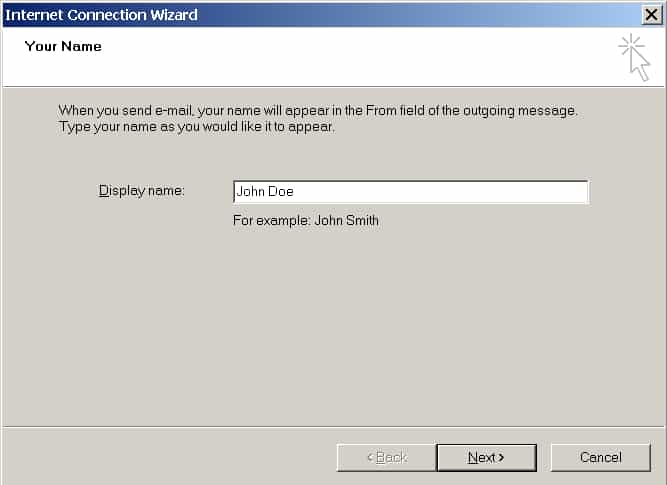
Enter your name as you want it to appear in any emails you send, and click Next.
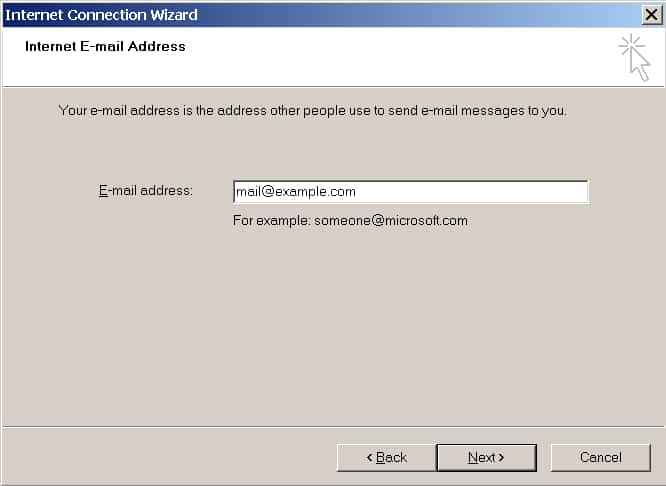
Type your email address, and click Next.
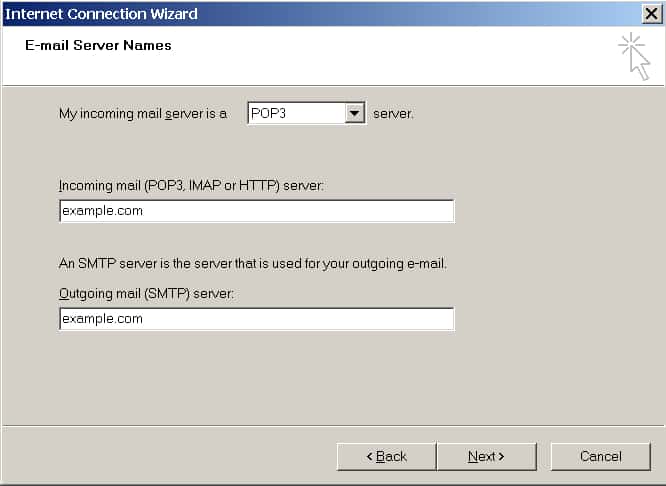
Specify the following settings:
Protocol of your incoming mail server.If you want to keep copies of messages on the server, select the IMAP option. If you do not want to keep any messages on the server, select the POP3 option. Selecting IMAP will also allow you to train the spam filter on email messages you receive.
Incoming mail server: yourdomain.com
Outgoing mail server: yourdomain.com
Click Next.
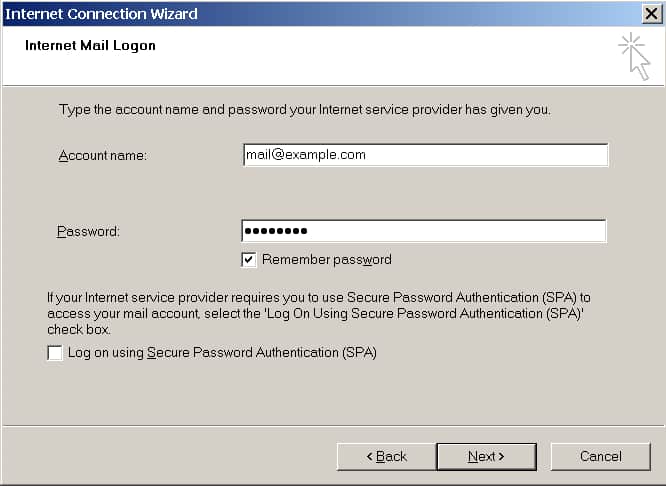
Specify the following:
Your account name. Type your email address in the Account name box.
Your password. Most likely, this password coincides with the password you use for logging in to Plesk.
Remember password checkbox. Leave it selected if you do not want to be prompted to enter password each time your email program connects to the mail server to check for new mail, and click Next.
To complete setting up your email program, click Finish.