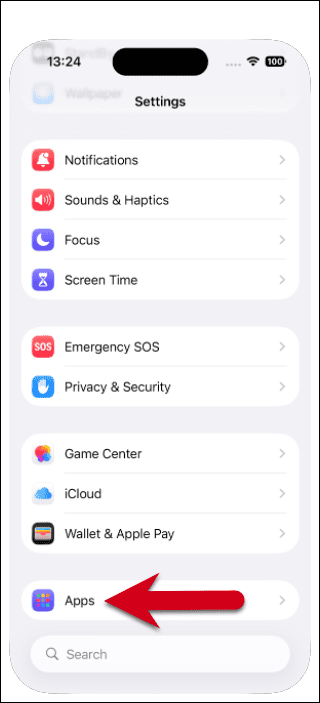
Step 1 - Go to Settings > Apps
Open Settings on your iPhone, scroll down and tap Apps.
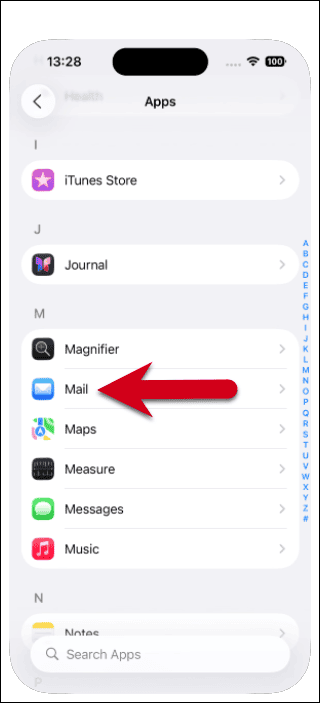
Step 2 - Tap Mail
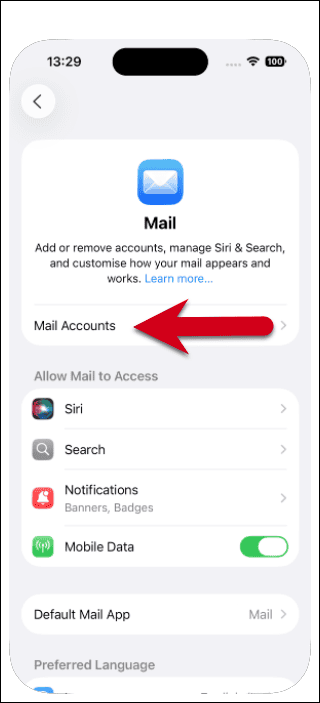
Step 3 - Tap Mail Accounts
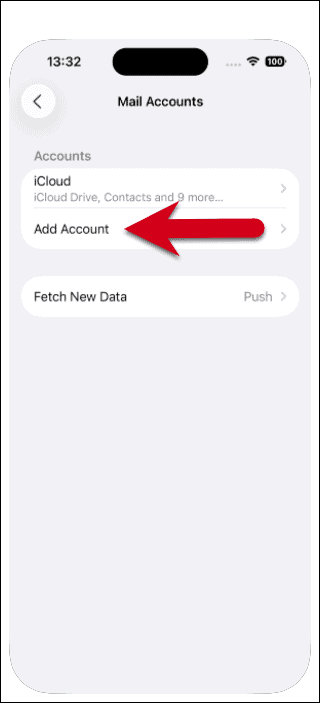
Step 4 - Tap Add Account
Step 5 - Press choose from a list
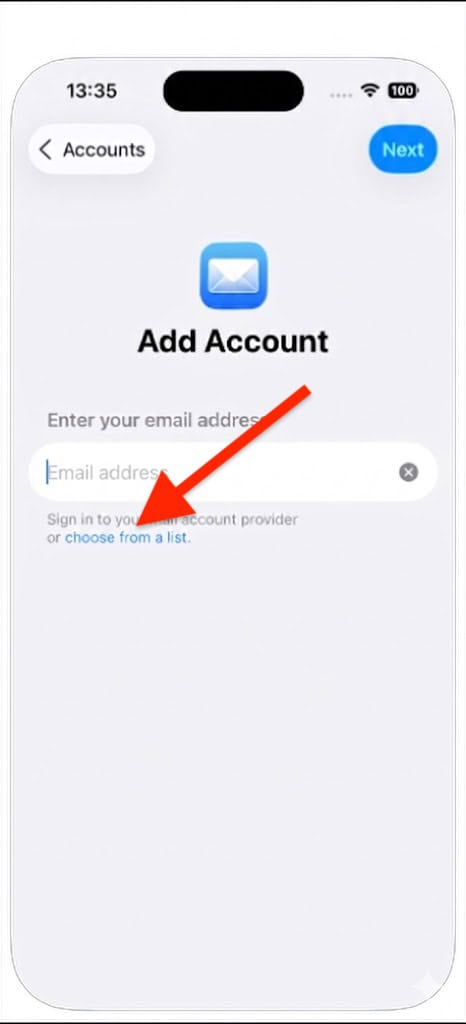
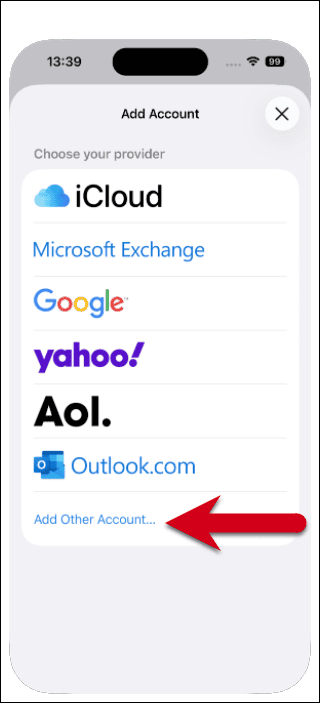
Step 6 - Tap Add Other Account
Step 7 - Choose Mail Account
Step 8 - Enter your account details
Name: Your Name
Email: Your email
Password: Your email password
Description: a name for the account on your device
Then press Next
Step 9 - Enter your server settings
Enter the following settings, ensuring IMAP is selected as account type.
Incoming Mail Server
- Host Name: mail.yourdomain.com
- Username: your email address
- Password: Your email password
Outgoing Mail Server
- Host Name: mail.yourdomain.com
- Username: Your email address
- Password: Your email password
