
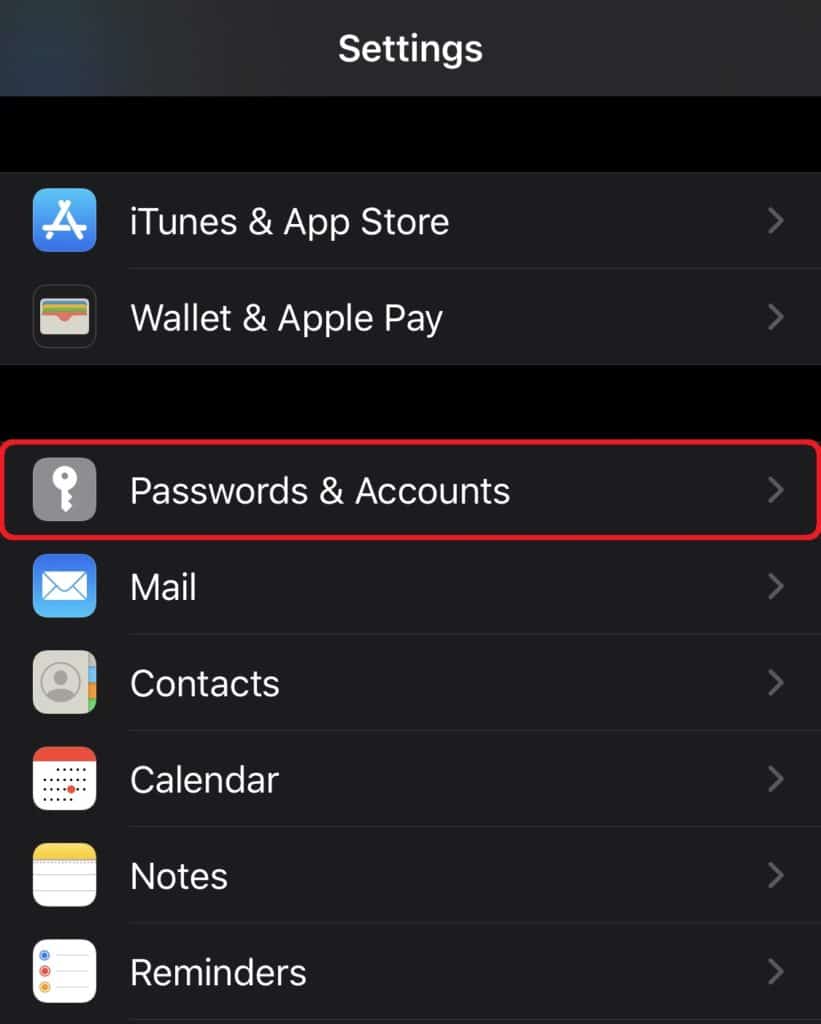
1. From the Home screen go to Settings and tap Passwords & Accounts
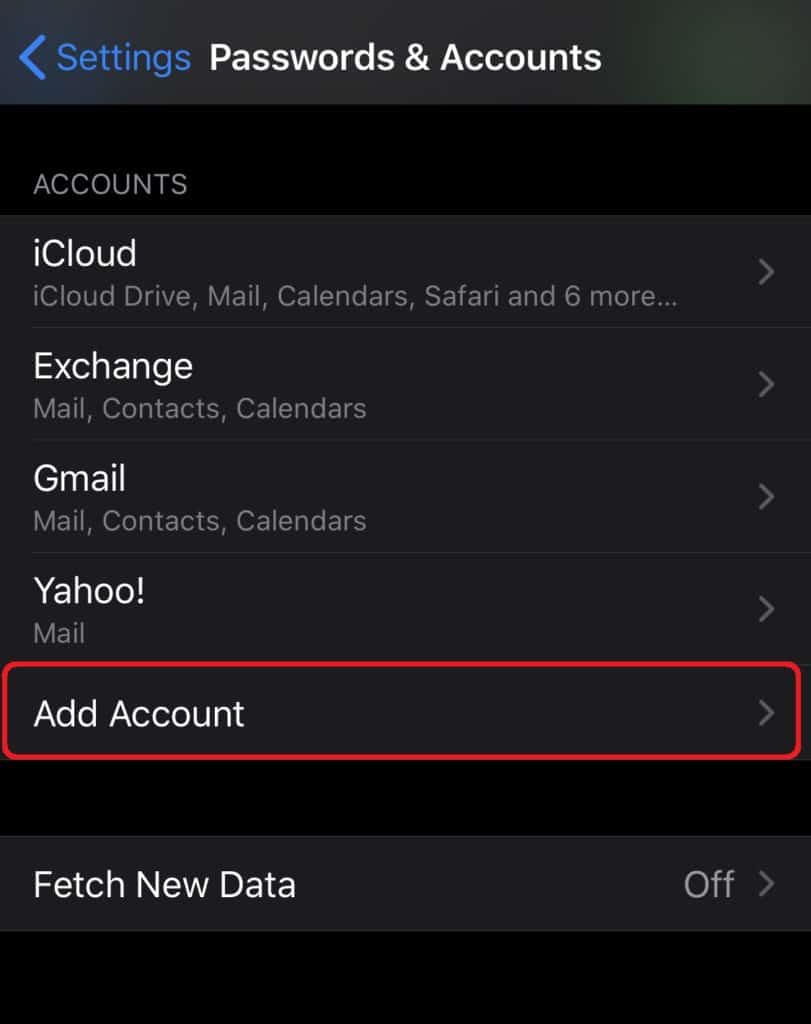
2. Tap Add Account.
3. Tap Other then Add Mail Account.
On the New Account screen, enter your name, email address, password and a description for your account. Then tap Next.
Note: Mail will try to find your email settings automatically. If the account lookup fails, you will need to enter the email settings manually. Follow the steps below to finish your account setup.
Choose IMAP or POP3 for your new account and enter the following information. Then tap Next.
Incoming Mail Server:
Host Name: yourdomain.com
User Name: Your full email address
Password: The email password you use to sign in to your account.
Use a secure connection. For POP3S: 995 & IMAPS: 993.
Unsecured connections will not work !
Outgoing Mail Server:
Host Name: yourdomain.com
User Name: Your full email address
Password: The email password you use to sign in to your account.
Use a secure connection. SMTPS: 465 or 587.
Unsecured connections will not work !
The Mail app will verify if your email settings are correct. If they are incorrect, please edit them and make sure that they are properly configured. Tap Save to finish the account setup.