
Step 1: If you haven’t already downloaded & installed Outlook, you can click here to open the Play Store.
Step 2: The first time you open Outlook, you’ll see a screen like the one below.
Step 3: Enter the email address you are adding as user@yourdomain.tld, Then tap Continue.
Step 4: Outlook will attempt to help you setup your email account as though you are connecting to a Microsoft Exchange mail server. We’ll need to switch the account type to continue setup.
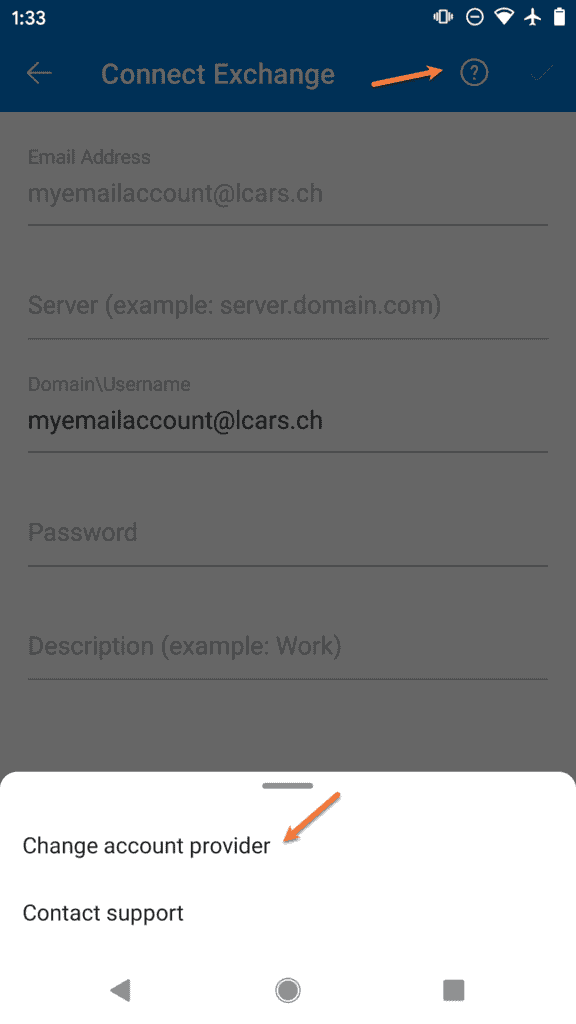
Step 5: Outlook will provide you with a list of common account types. In the 3rd section, tap IMAP to continue.
Step 6: On the next screen, you will be prompted to enter the account credentials for this new account.
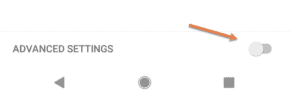
Next, tap the toggle in the bottom right to enable the advanced settings.
Step 7: Fill your email address, display name & description
Incoming IMAP Mail Server: mail.yourdomain.tld as the IMAP Host Name
Outgoing SMTP Mail Server: mail.yourdomain.tld as the SMTP Host Name
Fill in your email address & email password twice for both incoming and outgoing.
Step 8: To proceed, tap the ✔ mark in the top right corner.